
5 digital accessibility mistakes that could affect your business

Did you know that almost 96% of major websites do not meet basic accessibility standards? Discover 5 common digital accessibility mistakes companies make and how to avoid them.
Did you know that your digital content could be leaving out 1.3 billion people?
Far from being an exaggeration, it is a reality: the majority of websites are still not accessible.By 2024, almost 96% of the world’s most visited pages will be accessible. 96% of the world’s most-visited pages did not comply did not meet basic accessibility standards, with an average of 57 errors per page. 57 errors per page.
The figures are worrying, and rightly so. More than 1.3 billion people in the world live with some type of disability., y 2.5 billion depend on assistive technologies to surf the Internet. Digital accessibility is no longer just a question of ethics or inclusion, it is also a a key factor in corporate reputation and performance.
And we’re not just talking about websites, it also affects all digital content, from online training courses and presentations to corporate documents or internal materials.
The silver lining is that you still have time to get it right. While many competitors are still stumbling over the same mistakes, you can get ahead of the curve by creating digital experiences that are truly accessible to everyone.
In this article we tell you the 5 most common digital accessibility mistakes and how to avoid them.
Key Points
- Digital accessibility directly impacts your company’s bottom line: from legal compliance and market reach, to talent retention and brand reputation.
- Accessibility issues often stem from assumptions about how people use digital content, so it’s crucial to test your content from multiple perspectives. about how people use digital content, so it’s crucial to test your content from multiple perspectives.
- Many accessibility settings are simple once you understand what to check, from writing descriptive alternative text to maintaining a proper heading hierarchy.
What is digital accessibility? A quick reminder
Digital accessibility ensures that your websites, applications and digital technologies are designed so that all people can access, understand and use them without barriers.
Just as you wouldn’t build an office without access ramps, you shouldn’t create digital content without accessibility features such as screen reader support and intuitive layouts.

The cost of digital accessibility errors
Imagine launching a training course that 20% of your employees can’t complete, or creating an advertising campaign that some of your potential customers can’t consume. These real-world examples show how inaccessible content can generate significant costs for your company at different levels:
Legal risk
Demands for accessibility are increasing every yearputting companies at greater financial risk. In 2023 alone, thousands of businesses faced lawsuits related to the Americans with Disabilities Act (ADA).
2. Market loss
Those 1.3 billion people with disabilities represent 8 trillion dollars in disposable income. If your content is not accessible, you are leaving out a huge audience full of opportunities.
3. Talent drain
Inaccessible tools or training can exclude employees with disabilities, making it difficult to attract and retain talent.
4. Damage to brand reputation
The 92% of consumers prefer companies that prioritize accessibility. Inaccessible content not only excludes users, but also damages your reputation.
What mistakes are companies making? Here are the 5 most common and how to avoid them.
Error 1: Colors that make reading difficult
Nearly 81% of the websites have contrast problems in the text, making it difficult to read. In addition, many rely solely on color to convey information or use excessively bright backgrounds, worsening the experience.
Poor color choices affect everyone, from people with color blindness or low vision to those who view content in bright light or after many hours in front of the screen.
How to avoid it
Color accessibility is one of the easiest easiest settings to implement. Here are some practical recommendations:
- Follow the WCAG contrast guidelines. The Web Content Accessibility Guidelines (WCAG) recommend a minimum contrast ratio of 4.5:1 for most texts. In large texts (18 pt or more), it may be sufficient to use 3:1although it is always advisable to prioritize legibility.
- Uses contrast checking tools. Tools like this color contrast tester allow you to test your color schemes in seconds, without the need for calculations. In addition, there are other contrast validators that you can also use for website-level audits to help you identify large-scale problems.
- Add more than one visual cue. Don’t rely on color alone to convey information. Accompany error messages with icons or descriptive text. Color can reinforce meaning, but it should not be the only channel.
- Test with real users. Involve visually impaired people in testing your content. Their feedback will help you design more inclusive experiences.
Mistake 2: Writing a bad alternative text (or not writing it at all)
The alternative text -o alt text– describes images to those who cannot see them. Embedded in an image’s HTML code, it allows screen readers to convey your visual content, provides context when images don’t load, and helps search engines better understand your visual assets.
More than half of the websites don’t have alternative text, but that’s only part of the problem. When companies do add it, they often get it wrong. Common mistakes include writing descriptions that are too long, omitting key details, or including keywords such as “business team meeting corporate office”. The result? Assistive technology users and others who cannot see your images have a frustrating and incomplete experience.
How to avoid it
Writing an effective alternative text is a skill that anyone can develop. Here’s how to do it properly:
- Determines whether alternative text is necessary. For purely decorative images, accessibility guidelines recommend using an empty attribute (alt=””) in the alt text field. However, if omitting alt text might make users feel left out or lose context, consider adding it anyway. Even decorative photos can enhance the user experience if they complement the message.
- Be brief and precise. Try to keep descriptions to no more than 250 characters, as many screen readers and platforms tend to have limits. Also, most users prefer short, concise descriptions. If an image requires a longer explanation, use a caption or include additional details in the surrounding content.
- Prioritize clarity and relevance. Omit phrases such as “this is an image of…” or “photo showing…”, because screen readers already communicate that information. Instead, describe what provides value or context within the content. If relevant, mention recognizable places, people or objects.
- Tests accuracy. Cover the image and read your alt text. Does it convey the purpose or meaning of the image? If not, adjust it until it does.
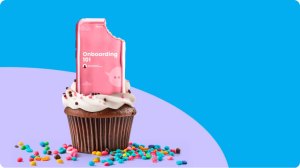
For example, Articulate used the image above in a marketing campaign-highlighting how a Rise microlearning course can help learners digest complex topics with ease. Following alt-text best practices, we could write:
“A chocolate cupcake with white frosting and colorful sprinkles holds a pink cookie-shaped phone containing an ‘Onboarding 101’ course. A bite taken from the phone symbolizes how microlearning helps students digest complex topics.”
Mistake 3: Breaking the hierarchy of headings
Many companies treat headers as simple formatting tools, but these markers don’t just serve to make text larger or bold-they’re a vital roadmap for navigating your content.
Screen reader users rely on heading levels to skim through content, jumping from one section to another. When companies skip heading levels or use them incorrectly, they disrupt this structure.
How to avoid it
Creating a proper heading structure is easy if you follow these recommendations:
- Use headings only to structure the content. Resist the temptation to use headings just to make text larger or bold. If you need to highlight text, use other formatting options such as text boxes or bold text.
- Follow the hierarchy. Your heading structure should follow a logical sequence. Think of it as an outline where each level provides more detail about the previous one, like this:
- H1: Main title of the page (use only one per page)
- H2Main sections
- H3: Sub-sections of H2
- H4: Sub-sections of H3
- Test your structure. Check your headings in isolation. Do they clearly describe your content? Can anyone understand the organization of your page just by reading the headings?
Mistake 4: Ignoring keyboard accessibility
Many people with motor disabilities, or who use assistive technologies such as screen readers or speech recognition software, rely on keyboard navigation, using the Tab, Enter and arrow keys to move through the user interface. However, much digital content is still designed exclusively for mouse navigation.
Imagine filling out a form where tabbing between fields randomly jumps all over the web page. Frustrating, isn’t it? Problems like this can make a website unusable for keyboard-only users.
How to avoid it
Here’s how to check if your content is keyboard accessible:
- Navigate without a mouse. Every interactive element-buttons, links, form fields, drop-down menus-must be accessible by keyboard navigation. You can test this by navigating through your content without using the mouse. Can you reach all the elements by just pressing the Tabkeys, the arrow keys and the EnterCan you get out of the modal pictures?
- Keep the focus visible. Users need to know where they are on your page, so it is crucial that a clear visual indicator always shows which element has the keyboard focus.
- Maintain a logical order. The tab order should follow a natural reading pattern. In most Western languages, that is from left to right and top to bottom, while languages such as Arabic and Hebrew are read from right to left. Regardless of the language, if an item appears first visually, it should be first in the tab order.
Mistake 5: Designing without taking everyone into account
It’s not uncommon to make assumptions about how people use digital content. Perhaps we think we’re being clear when we write “Click the orange button at the top” or “Use the menu on the left.” However, these prompts can confuse users who rely on assistive technologies, have color blindness, or access content from mobile devices.
How to avoid it
Creating inclusive content means thinking beyond our own way of perceiving and interacting with digital spaces. Here are some strategies to avoid this mistake:
- Write location-independent instructions. Never assume that items will appear in the same place for everyone. Instead of “Click the button on the right,” use descriptions like “Select the ‘Register’ button to continue.” This works regardless of screen size, device, or how someone accesses your content.
- Label interactive elements clearly. Links, buttons, and form fields must have descriptive and specific texts. Avoid generic phrases like “click here” or “submit”. Instead, use phrases like “explore our pricing plans”, “submit the registration form” or “open the configuration menu”.
- Design with multiple senses in mind. All information should be accessible in multiple ways. Required fields? Mark them with colors and text. Navigation menus? Make sure they work with both mouse and keyboard.
Create accessible digital experiences
Digital accessibility is about understanding and respecting how different people interact with your content. Before making a design decision, ask yourself: How would different people interact with this content? What barriers might they encounter and how can we remove them?
Remember: when we design with everyone in mind, we are creating better experiences for all users, regardless of their capabilities. That’s not just accessibility, that’s good design.
At Actua, we believe that digital accessibility not only improves the experience of individuals, but also the impact of organizations. If you want to learn how to put these principles into practice, we invite you to watch our webinar on digital accessibilitywhere we share strategies and real examples to design more inclusive content.
Article created in collaboration with Articulate.